
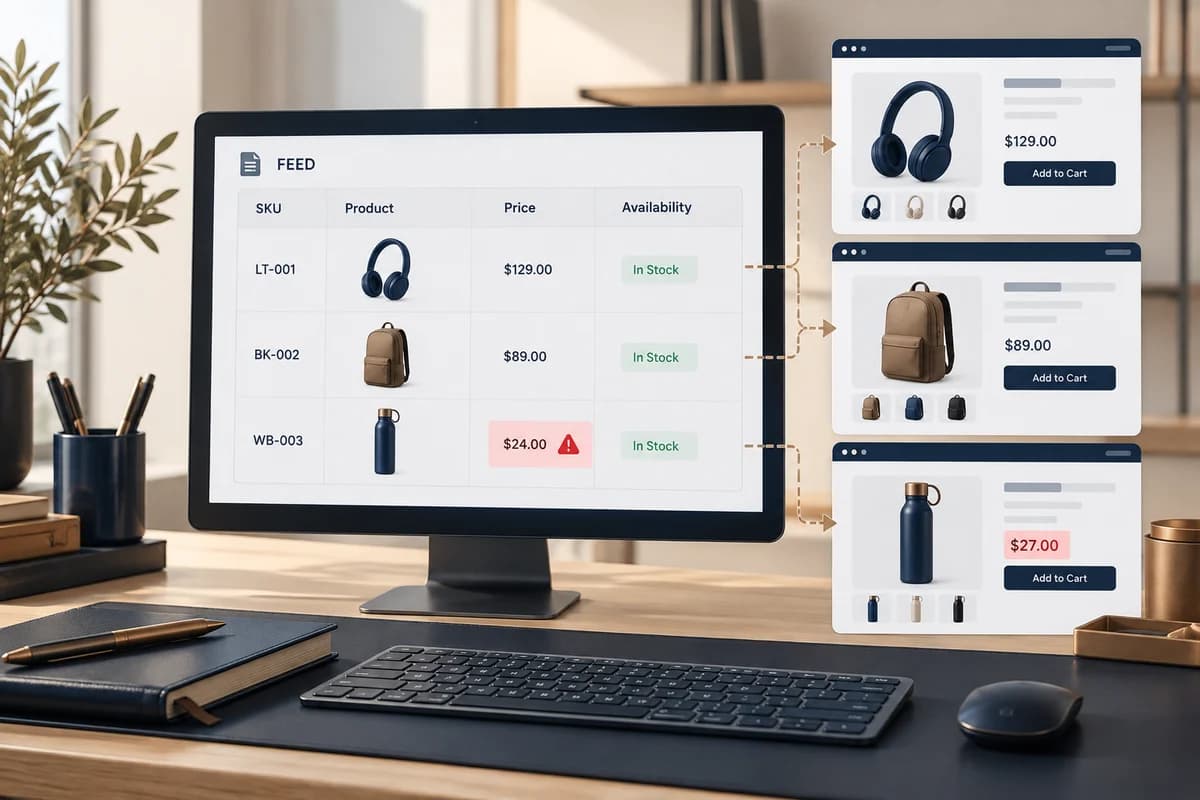
What is a product feed, and when is it useful?
A product feed is a structured source describing each item you submit to Merchant Center. It can be a spreadsheet, XML file, or integration. It is useful when you can keep each item’s ID, price, currency, availability, image, and product link aligned with the page where people can buy it. A feed cannot replace a complete product page or guarantee approval or serving. Google warns that inaccurate information or conflicts between the source and landing page can lead to disapprovals or incorrect displays. Start with Google’s product data specification, then review issues in the account.
A hypothetical single-item row
The row below describes a wholly fictional product. Every sample value illustrates field mapping; it is not a price recommendation or a claim about market availability.
| Field | Illustrative value | Check before submission |
|---|---|---|
| ID | BAG-COTTON-NATURAL | A stable business catalog identifier, not a value regenerated at each upload |
| Title | Reusable cotton tote bag with long handles | Describes the actual product and useful distinction |
| Price and currency | EGP 720 in this example only | Matches the price and currency at checkout |
| Availability | in_stock in this example | Matches the stock state used by the fulfillment team |
| Product link | The actual public product page | Opens the same item, not the home page or a search result |
| Image | A clear image of the actual item | Not a temporary image or a different variant |
Prepare and review the source
- Name one source of truth for each field: SKU for the ID, inventory for availability, and the actual store price for price and currency.
- Separate selectable variants as the current specification requires for the target market and program; do not merge colors or sizes without identifying them.
- Match title, description, link, and image to the item the visitor reaches, then test the link on a phone.
- Check required formats, including currency, availability, and manufacturer identifiers where applicable, against the current specification for your market and category.
- After submission, review each Merchant Center issue, fix the field and its source, and submit again. A file being read successfully does not prove the offer is eligible to serve.
Google updates the specification over time. Its 2026 update says that a 500 × 500 pixel minimum for product images will begin on January 31, 2027. Review the 2026 specification update and current account warnings before replacing images. Do not copy price or shipping values between markets without checking the target country, currency, and actual delivery setup.
This guide focuses on feed data and diagnostics. For product-page content and structured data, see the ecommerce product SEO guide; for operating the shop, see the platform selection guide. A maintainable source can be scoped within e-commerce development.
Apply this to your project?
Discuss your needs and current constraints so we can define the right next step and scope.